



 Sam Mikkael Baguio
Suddenly finding that you can’t log in, encountering the “Slack Cannot Connect” or “Server Error” message on the Slack app at all of a sudden and looking for solutions to get back to the Slack app?
When it comes to working on projects as a team, communication is one of the most important things when it comes down to the nitty-gritty of everything. Effective platforms for communication are key in forming intuitive and informative discussions among team members, which is what Slack is able to readily provide.
For those who are familiar with Discord, Slack is an almost identical platform that instead prioritizes productivity and works in contrast to Discord’s agenda for gaming and social interaction. Slack offers its users access to channels to discuss things as well as bots that can automate certain actions or allow for a smoother work and productivity experience while using the platform.
The myriad of features that Slack has going for it makes it one of the best productivity platforms online and serves a more professional role for bigger companies than Discord has to offer. Despite the numerous advantages and features that Slack has to offer, several users have been finding themselves in a situation where they can’t easily log in to their Slack apps/accounts, making it impossible to access their workspaces.
Types of Slack Login and Connection Problems
Several users of Slack have been finding themselves unable to log in to their Slack accounts and workspaces. This problem is usually encountered in the login screen after signing out of the app or during the app’s startup if the previous login session hasn’t been signed out, which starts an automatic login.
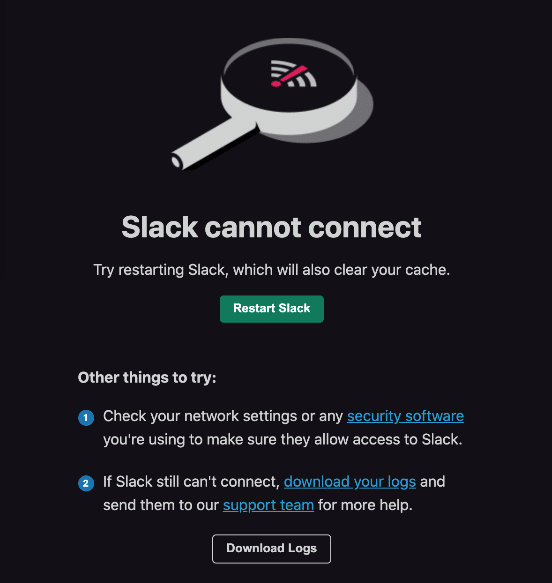
Login problems with Slack usually come in the form of an error message that states that “Slack cannot connect”, as well as several things you can try out to fix the issue.
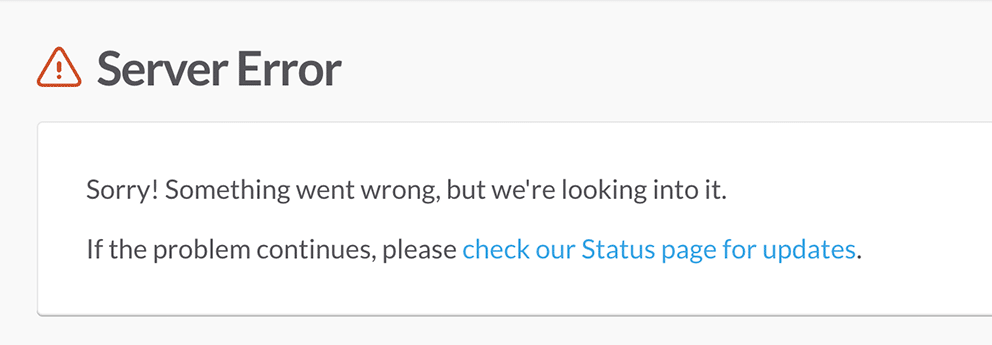
In other cases, some users have been receiving error messages that will indicate that something wrong happened with the servers, such as the “Server Error” message on Slack. Therefore, as the name suggests, this occurs due to server-side issues with the Slack service.
So, what Slack platform problem or login error are you encountering? Feel free to share your struggles in the comments below.
In spite of the way you can encounter any log-in trouble with Slack, it is very unlikely you can access any of the content found within your workspace until you are able to successfully log back into your account without any issues.
To help ease the frustration of not being able to log in to your Slack account, we have curated this guide that aims to help you resolve any issues you have of not being able to log in to your Slack account. This guide here contains 3 reasons why you might be encountering problems with logging into your Slack account as well as 9 fixes that you can try out to have the problem fixed and even prevented in the near future.
Slack is mainly available on the desktop through a dedicated software app or through your Internet Browser. It is also available in phones for Android and iOS, albeit with fewer features than its desktop counterpart and certain limitations. This guide will cover all the available fixes for the platforms whenever possible and applicable.
Now with all the technicalities out of the way, let’s get started with getting you logged back into your Slack account and workspace.
Why Can’t You Log In or Cannot Connect to Slack?
1. A Server Problem in Slack
One of the most common reasons why you might have trouble with being able to connect to Slack and subsequently login into your Slack account might be something going wrong with the Slack servers.
For platforms such as Slack, having a server free from any issues is important when it comes down to using it without any issues along the way. Any known issues that are currently ongoing with the server are bound to cause problems, such as the inability to log in to your account, especially if the service is directly affected.
Consider checking the server status for Slack (Step 1), as you might only be having problems with logging as a result of an ongoing problem or maintenance. It will be in your best interest to track the status, as you can immediately re-login to your account as soon as the problem is fixed.
2. Connectivity Issues When Logging Into Slack
In relation to the previous reason, the next reason why you might have problems with logging into your Slack account can be the result of several connectivity problems getting in the way. It can be difficult to pinpoint the exact reason why you might be having problems, but fortunately, Slack has several things at its disposal that you can use to solve the issue.
One of the things that you can try out in Slack is by running a connection test provided by the official Slack team (Step 2), turning off any VPN connections you might have running (Step 3), resetting your internet connection (Step 4) to send a report to the Slack team together with any net logs you can provide (Step 6).
All of the solutions above are geared towards helping you with any possible connection issues you might have that might make logging into your Slack account difficult.
3. Performance Issues Related to The Slack App/Internet Browser
The last reason why you might be running into problems with your Slack app can be the direct result of performance issues with the app itself. It is not uncommon to find yourself encountering problems such as logging into your Slack account because of either the Slack app severely lagging or running into bugs and problems.
One of the two best solutions you can follow to quickly solve this issue is by clearing your Slack Cache and Data (Step 7) or by resetting your Slack app completely (Step 8).
9 Fixes For When You Can’t Log In, or Encounter “Slack Cannot Connect” or “Server Error” on Slack
1. Check For Slack’s Server Status
It should come as no surprise that an app like Slack relies on a server in order for it to function properly without any issues. Like many platforms for communication and message with other users of the same platform, it is important for Slack’s servers to be fully functional in order for you to have a smooth experience.
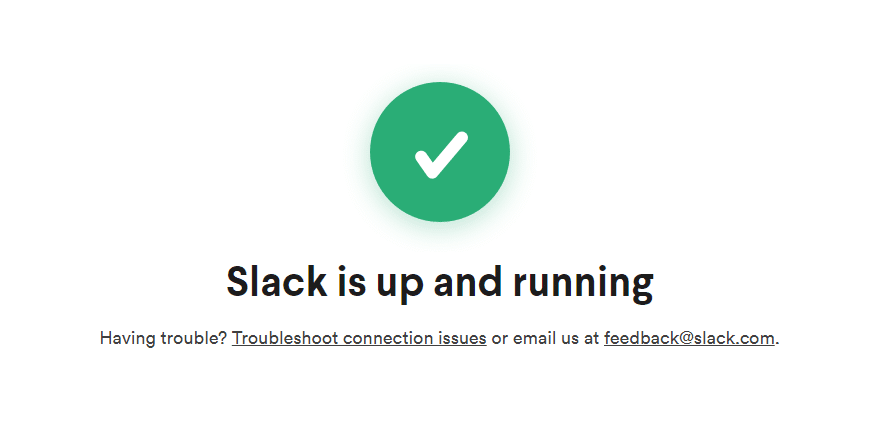
Fortunately, Slack allows us a general look at its personal servers on this page as it will display to you the general health of the server as well as the individual status of each of its services. When it comes to logging into your Slack Account in particular, you want to keep an eye on the current service status of “Login/SSO”.

Any other status besides “No Issues” that is found in the Login/SSO portion of the website will usually indicate a difficulty for users to properly log in to their Slack accounts if they haven’t already logged in previously. It is possible for users that had already logged into Slack before a problem popped up to use the platform without any issues unless the other features listed are also affected.
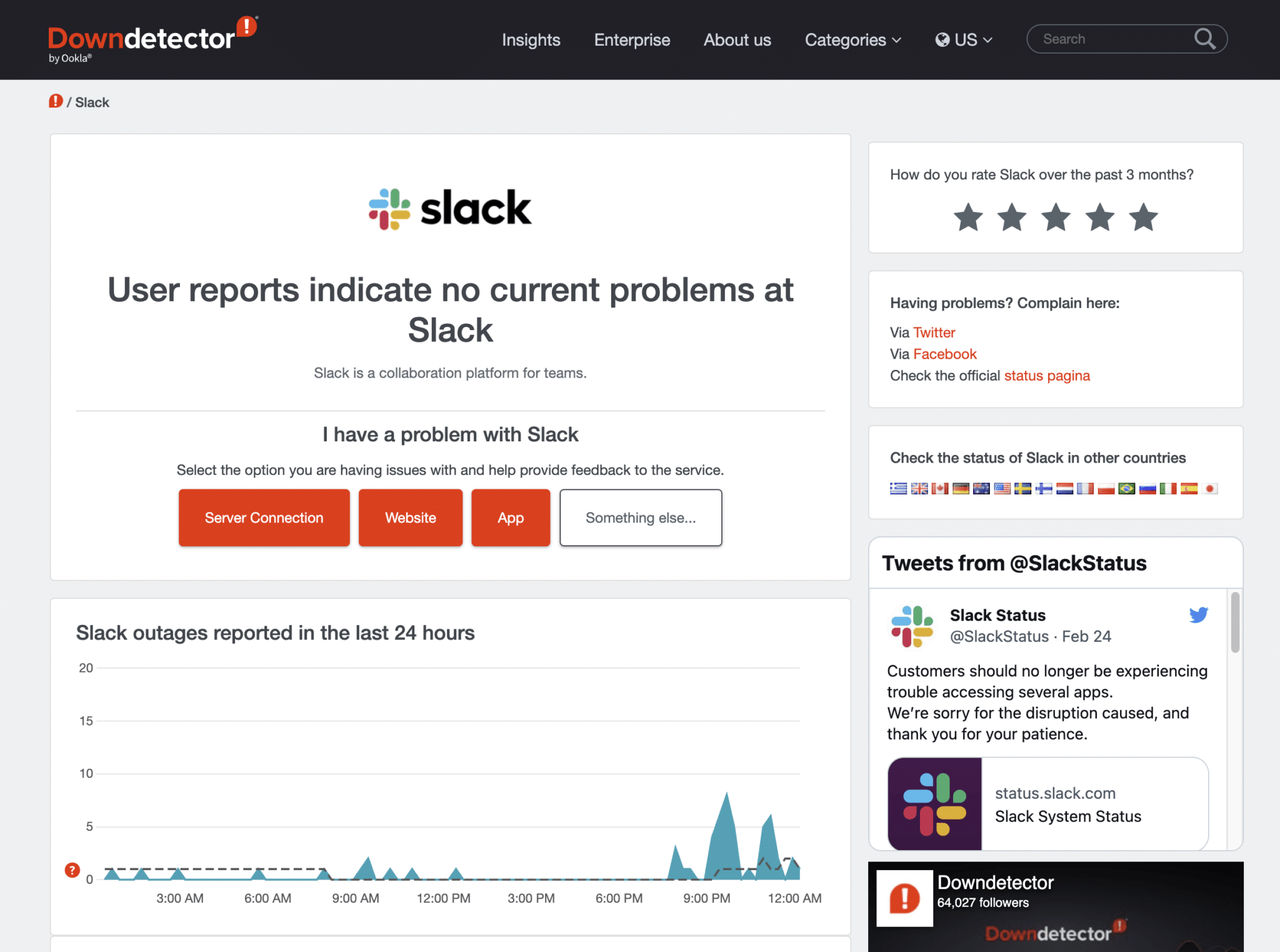
Besides that, you can also refer to third-party server status checkers, such as Downdetector, which compiles user reports and displays the current status of online services, like Slack. So, you can refer to the comments section and live map to see if users are reporting similar login, connection, or server errors, like the one you are encountering.
2. Run a Slack Connection Test
As we mentioned earlier, one of the reasons why you might not be able to log in to your Slack account might be a direct problem with your connection to the service. There can be several factors and reasons why you might be having problems logging into Slack despite having a good network connection.
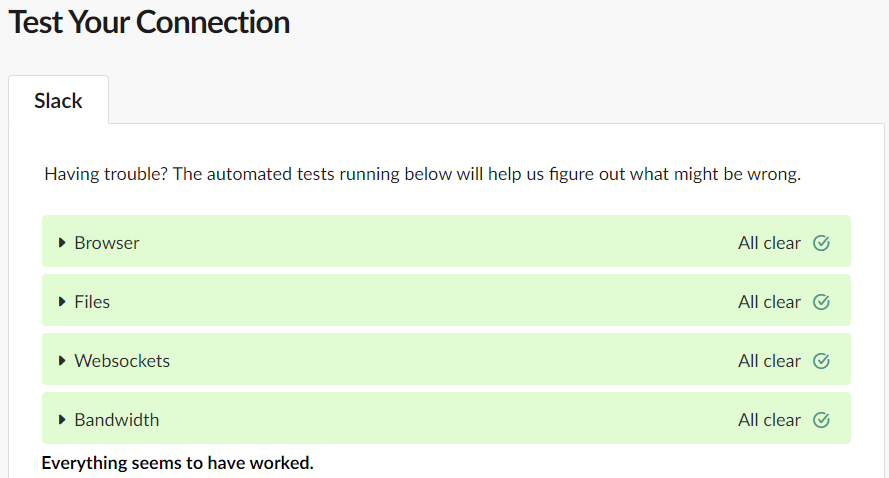
If the problem seems to be with your current connected network connection not connecting to Slack, then the team over there allows you to test your connection and how well it fares. You can head over to this page to check your connection to Slack, albeit only limited to the internet browser version of the service.
Regardless, getting connected through your internet browser and having no issues should indicate that you should be able to connect to another platform, with the inverse also being true if you aren’t able to connect.
3. Turn Off And Avoid Using a VPN When Logging In to Slack
For the most part, having a VPN turned on often brings us several benefits that make the service running worthwhile. Internet safety and even access to certain content that would otherwise be unavailable to use without the use of a VPN are one of the many reasons why you should consider having one in the background.
Despite these benefits, however, the use of VPNs can also be slightly problematic as you can have trouble with using services such as Slack and the like. Slack is a workspace platform that allows you the benefit of getting connected with other team members, which a VPN can impede with its own features.
This would often lead to your account getting falsely flagged for an offence and even lock you out from logging into your account for security reasons. With this in mind, we recommend turning off your VPN connection while trying to log in to Slack, then restarting Slack and attempting to log in to your account after turning it off.
For application-based VPN services, you easily disconnect or disable your VPN connection within the application settings.

Additionally, usually, using low-quality VPN services can cause miscellaneous platform and connection problems like this, as it funnels numerous users through a single IP address that Slack has already identified as fraudulent. Therefore, if you want to access websites and applications such as Slack and garner all the other security benefits that VPNs bring, we highly recommend subscribing to a premium VPN subscription. In this day and age, there’s a tonne available at affordable rates!
If you ask us, we recommend NordVPN, which is fast for as a daily driver, keeping us protected at all times even for when we’re using our daily apps, including Slack. So, do check out NordVPN and their insanely-valued deals for a good-quality VPN subscription!
Get NordVPN with up to 68% OFF and more today!
4. Reset Your Internet Connection
One of the reasons why you might have a hard time logging into Slack might be with the current network connection you have saved into your device. It is possible for the same internet connection to suddenly not work properly because of something going wrong with the connection settings.
Resetting your internet connection is one of the fastest ways to solve this issue, as it allows you to form a new connection instance and avoid the problems you had in the previous ones. Here’s how you can do it:
For Desktop (App & Internet Browser)
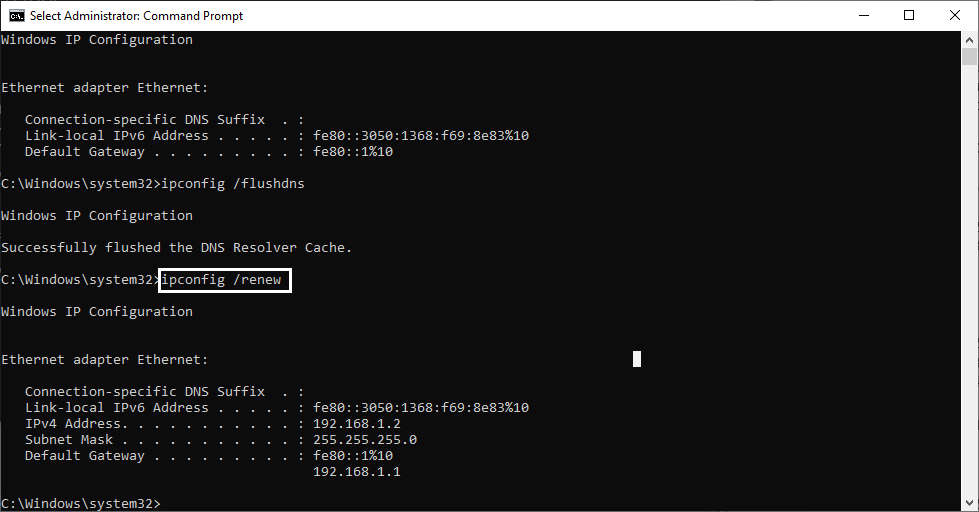
- Open your Command Prompt as an admin by typing “CMD” in your Search bar, and right-clicking then selecting “Run as Administrator”.
- In the Command Prompt window, type in “ipconfig /release”, hit enter, and wait for it to finish.
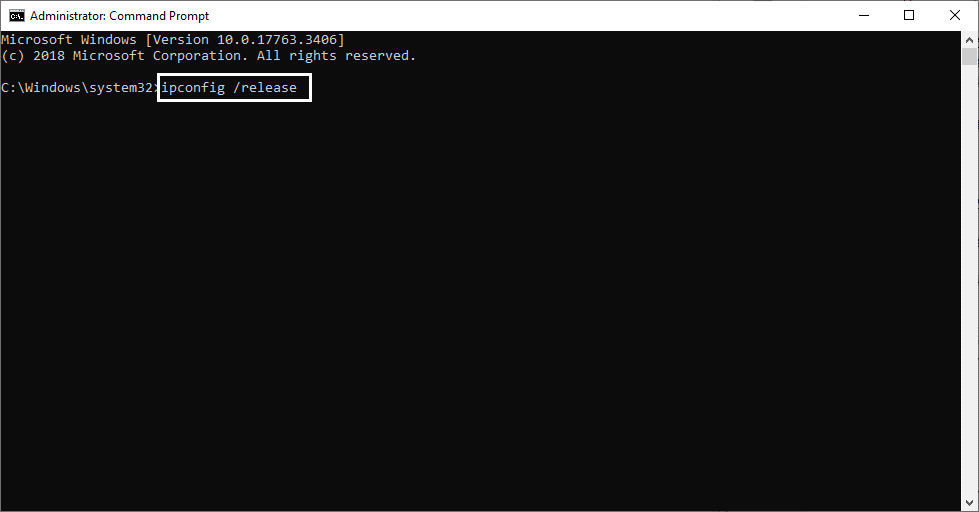
- Afterwards, type “ipconfig /flushdns” and hit enter to flush and clean your DNS settings.
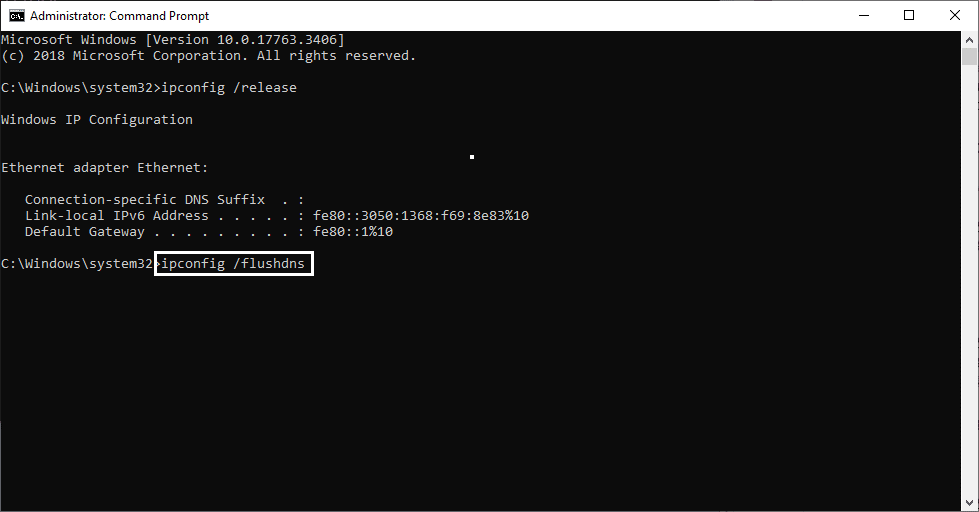
- Once the previous step is completed, type in “ipconfig /renew” to essentially restart and renew your internet settings and configurations. Once it finishes, you can close the window and restart your computer to make sure everything is applied properly.
For Mobile
Android
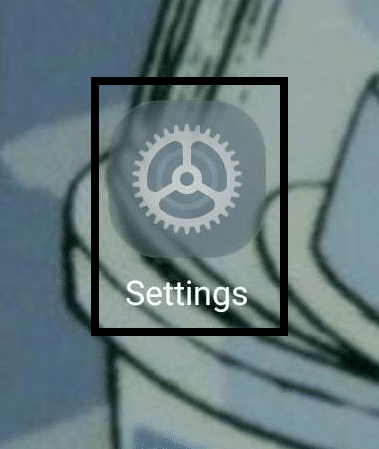
- Open your Settings ⚙️app on your phone.
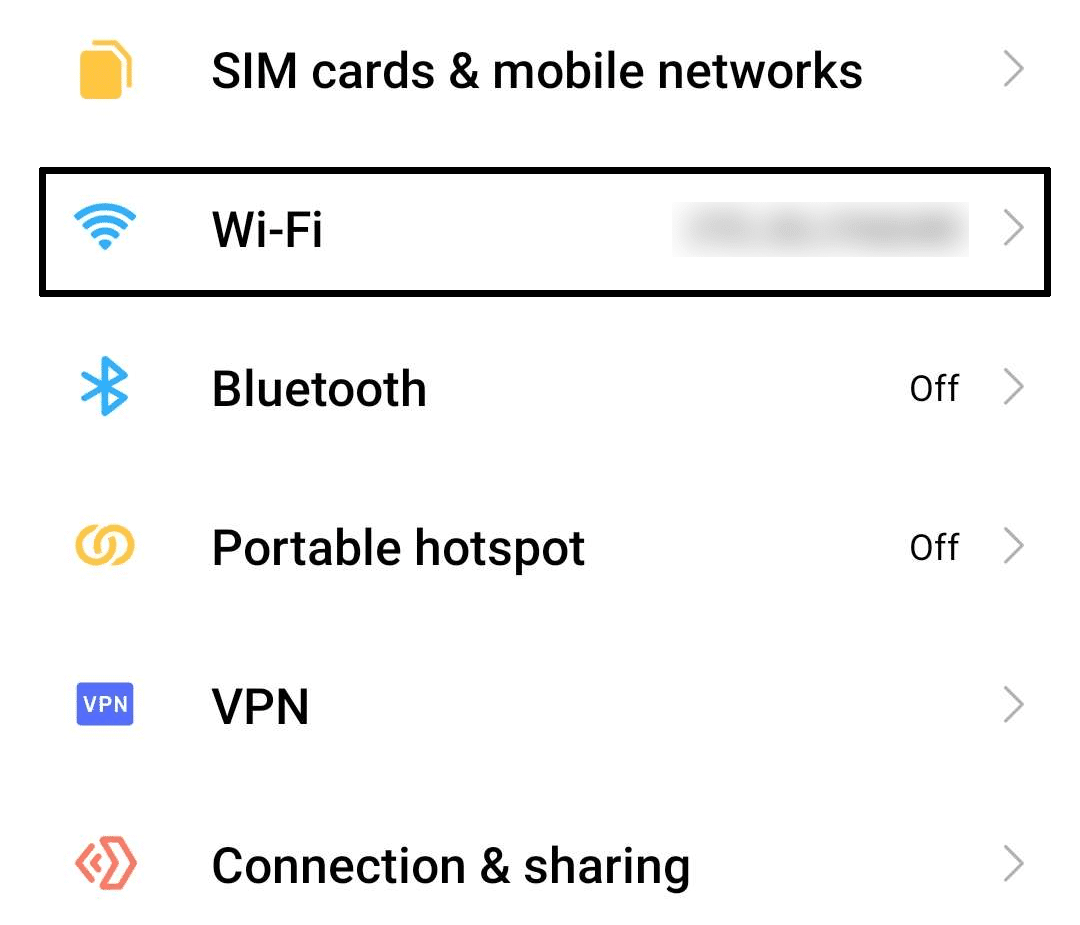
- In your Settings, open the “Wi-F & Network” option by tapping on it. You can look for a similar option, such as “Wi-Fi”, if you have a hard time finding it.
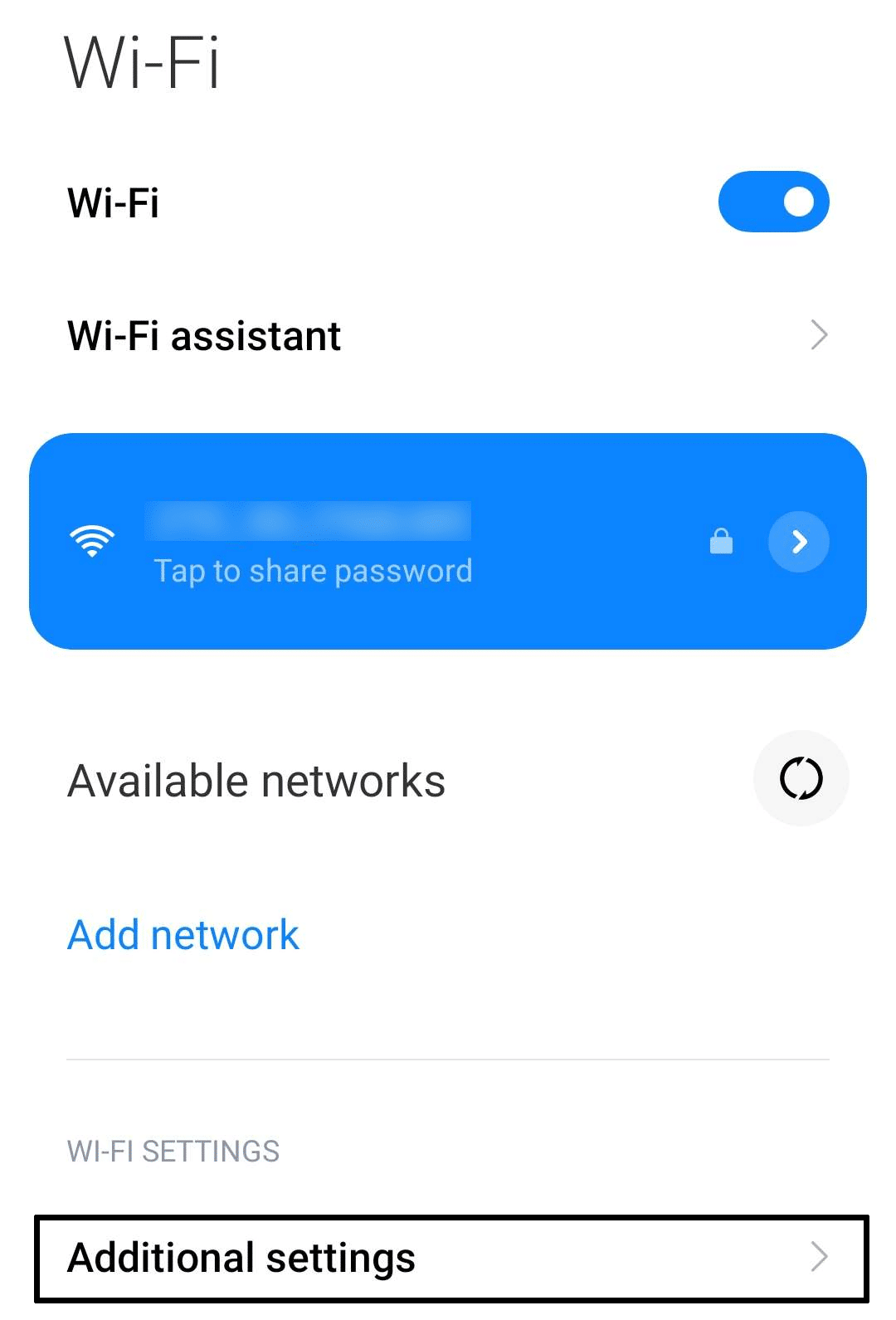
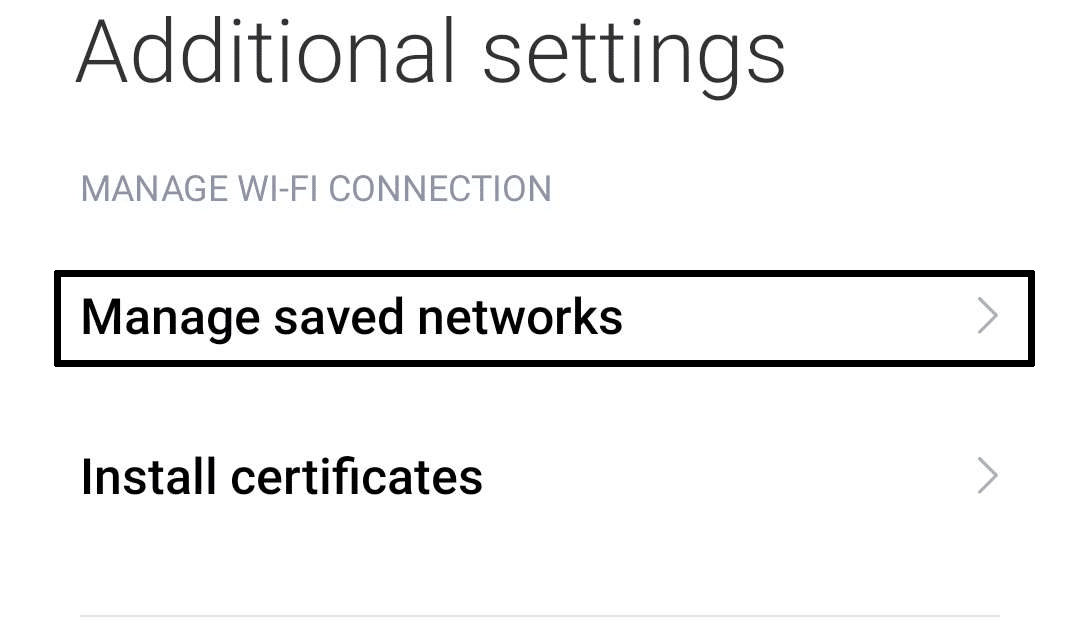
- In the Wi-Fi portion of your Settings, tap on “Additional Settings” found underneath the “Wi-Fi Settings”.
- In your Additional Settings, tap on “Managed Saved Networks”. This will show you a list of all connected networks you connected to and saved on your phone.
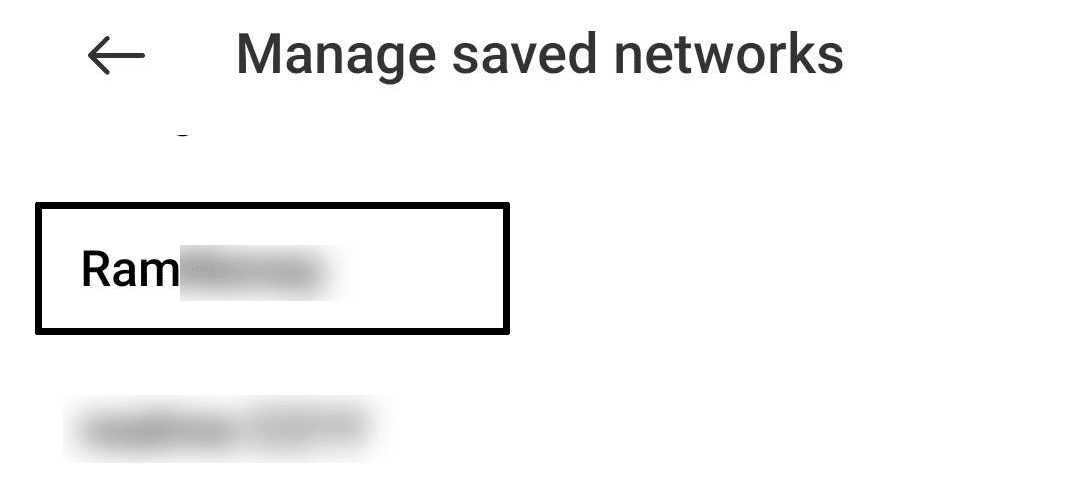
- Find the name of the network you are currently connected to and tap on it.
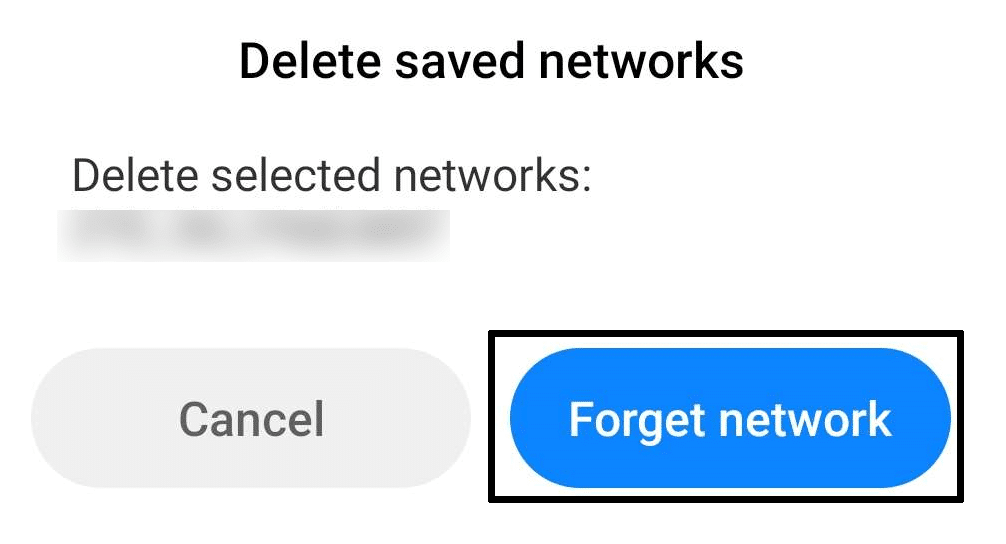
- After tapping on the connected network, tap on “Forget Network” to delete and forget it.
iPhone (iOS)
- To start, go to Settings.
- Then, select the Wi-Fi option.
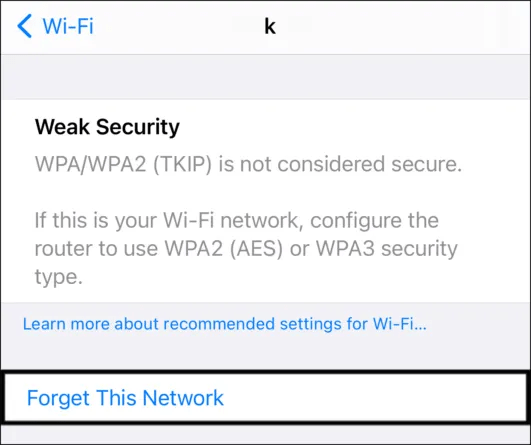
- Next, click on the Wi-Fi you’re connected to.
- Subsequently, choose the Forget this Network option.
- After 2 to 3 minutes, reconnect to the Wi-Fi again.
5. Reset Your Device’s Network Settings
Resetting network settings can be a quick and effective solution to fix the “Slack Cannot Connect” or “Server Error” issue that many users face when trying to log in to Slack. This fix essentially clears out any saved network settings, such as Wi-Fi networks or VPN configurations, that may be causing conflicts with Slack’s connection.
When network settings are misconfigured or outdated, it can lead to issues with Slack’s server communication, resulting in login problems or error messages. By resetting network settings, the device establishes new connections and eliminates any potential conflicts that may be causing the issue.
In addition, resetting network settings can also help to resolve issues related to slow internet connectivity or weak signals, which can often cause Slack to fail to connect. By doing so, users can restore their device’s network settings to its default state and ensure a stable connection to Slack.
For Mobile Users (Android & iOS)
For iPhone (iOS)
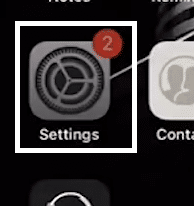
- Open the Settings ⚙️ app on your iOS device.
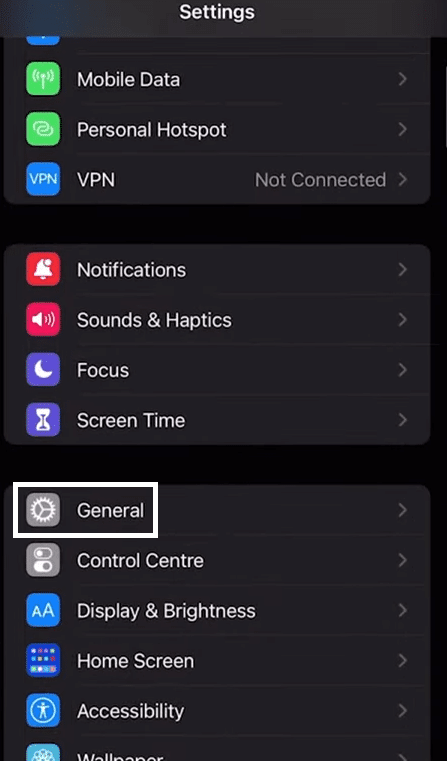
- In your Settings app, navigate to the “General” tab by tapping on it.
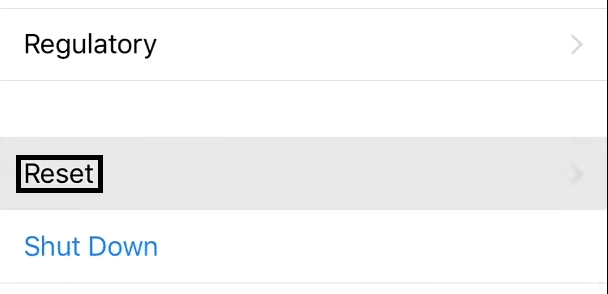
- Under the General tab of your Settings, scroll down until you find the “Reset” option. Tap on it to proceed.
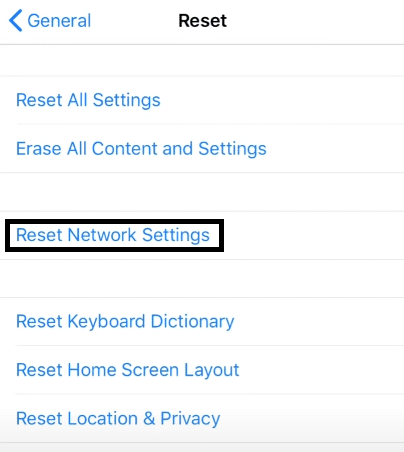
- After tapping on Reset, tap on “Reset Network Settings” and confirm the reset afterwards to begin the process.
For Android
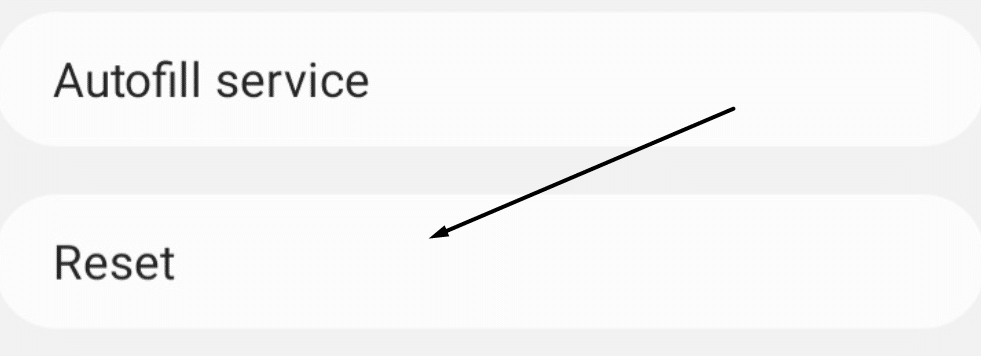
- First, open the Settings app (
 ) and head to the Reset settings.
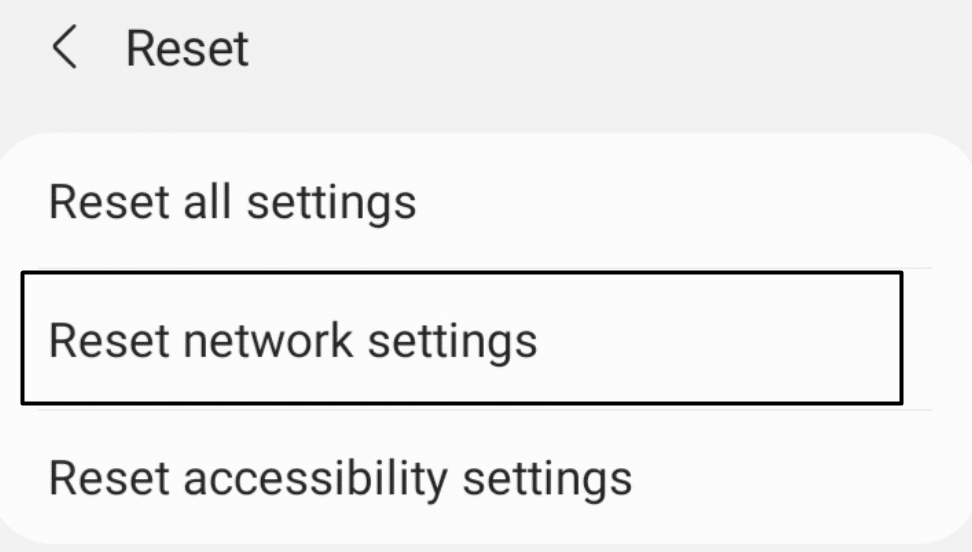
- Now, tap on Reset network settings and then Reset settings to confirm resetting the network settings.
For Desktop Users (Windows & macOS)
For Windows
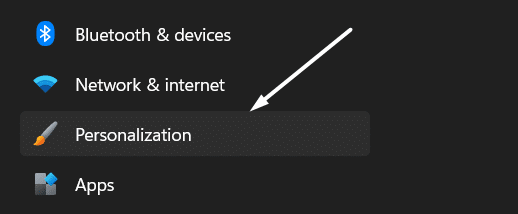
- First, open the Settings app () and navigate to the Network & internet section from the left-navigation panel.
- From the Network & internet area, proceed to the Advanced network settings section and click Network reset.
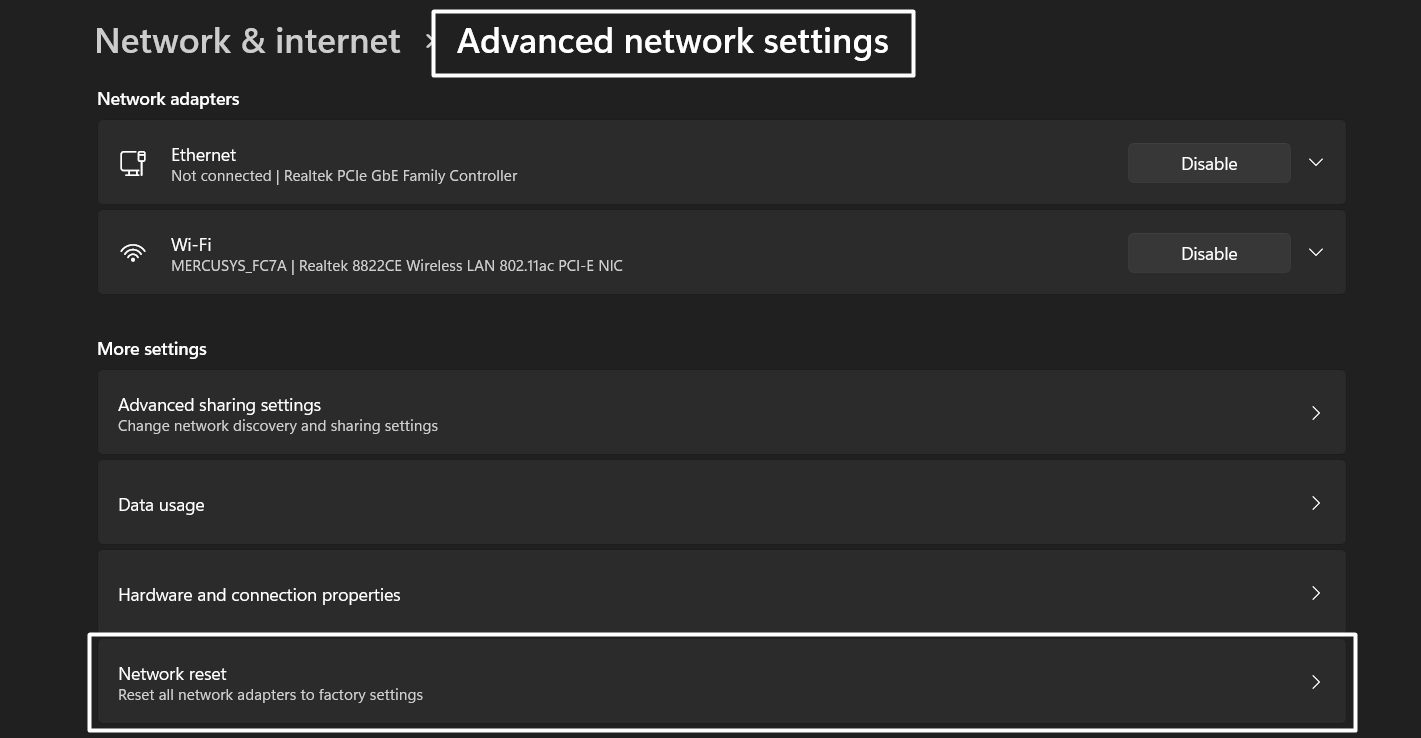
- Finally, click the Reset now option next to Network reset to reset your Windows PC’s network settings.

For macOS
- Start with turning off the Wi-Fi (
 ) by clicking on the Wi-Fi toggle in the top menu.
 - Now, open Finder and move to the Go section.
- Next, select Go to Folder, type /Library/Preferences/SystemConfiguration/ into the text field, and click Go.
- Then, remove the below-mentioned files from the System Configuration folder:
com.apple.airport.preferences.plist

com.apple.network.identification.plist or com.apple.network.eapolclient.configuration.plist

com.apple.wifi.message-tracer.plist

NetworkInterfaces.plist

Preferences.plist
- Lastly, move to Trash (
 ) and delete the same files from there also to delete them permanently.
6. Send Slack Support Team Your Net Log
Sometimes, the problem you might have with being able to log in to your Slack account might be an issue that can’t be easily found. This issue can be on either side of the spectrum, as it can be on your end or Slack’s end.
Sending a report to Slack together with your necessary logs is one of the best ways to solve any issues you might have with being able to log in to Slack. This also gives the team more insight to prevent this issue and improve their service for the better.
Here’s how you can send in a report to the Slack team together with your net logs:
For Desktop (Desktop & Internet Browser)
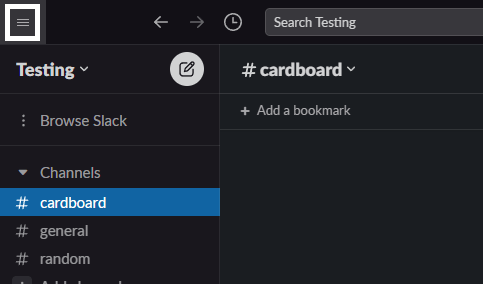
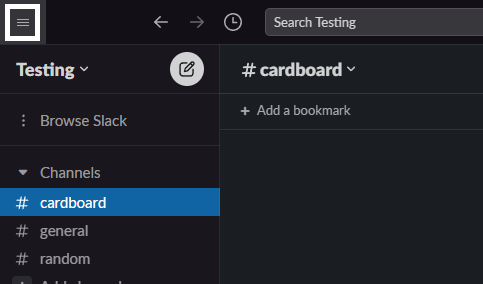
- In the Slack Desktop app, click on the three lines icon found at the upper-left portion of the app window.
. 
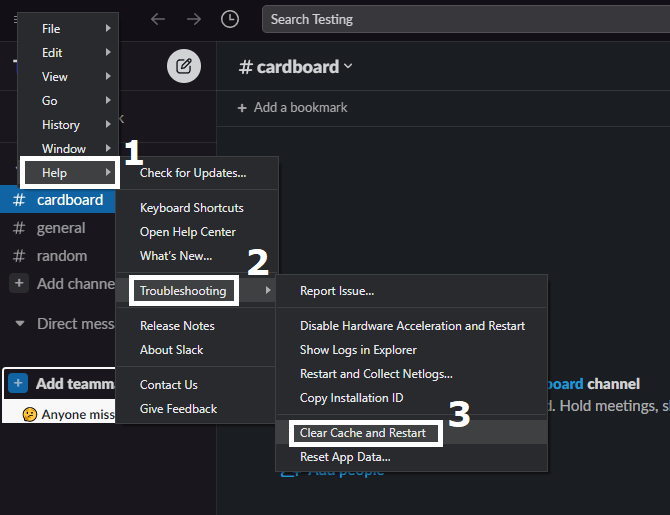
- After clicking on the three lines, click on the “Help” option, then click on “Troubleshoot”, and finally click on “Restart and Collect Netlogs…”.
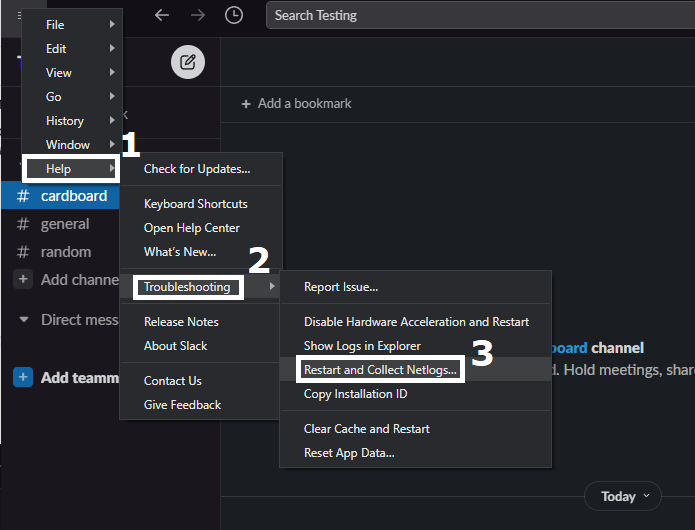
Make sure to locate where you saved your Netlogs from Skype on your PC, as you will be needing this in the next step.
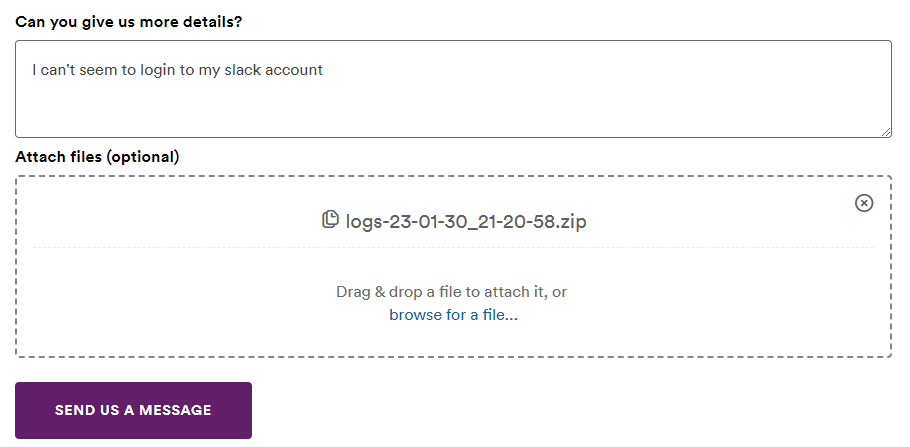
- Open Slack’s Help Center and send your collected net log zip file. Be sure to attach a message explaining your problem briefly, as well as the zip file itself attached. Click on “Send us a message” to finish the step.
For Mobile (Android & iOS)
- In your Slack mobile app, tap on the “Home” portion of the app found in the bottom portion menu.
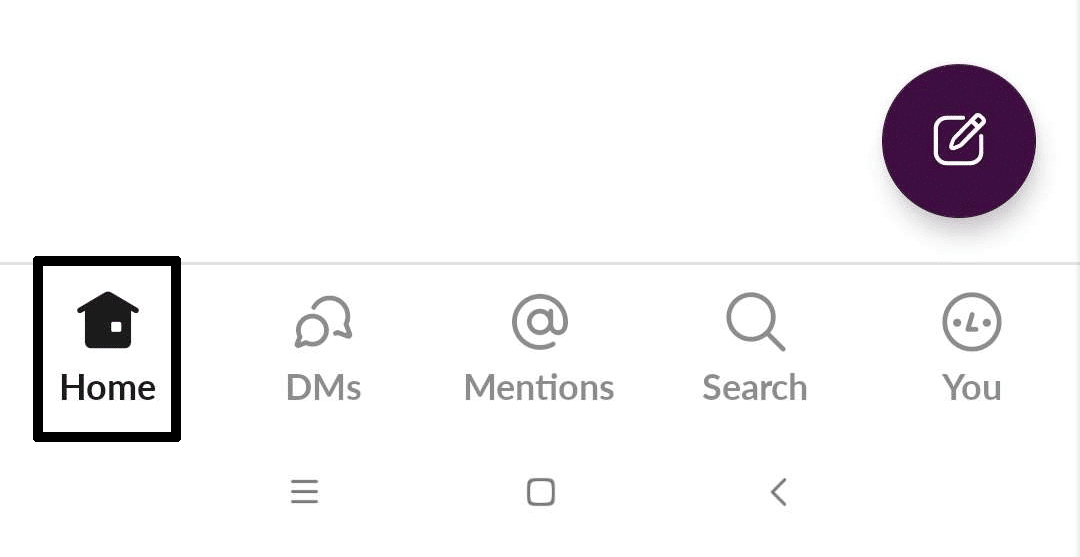
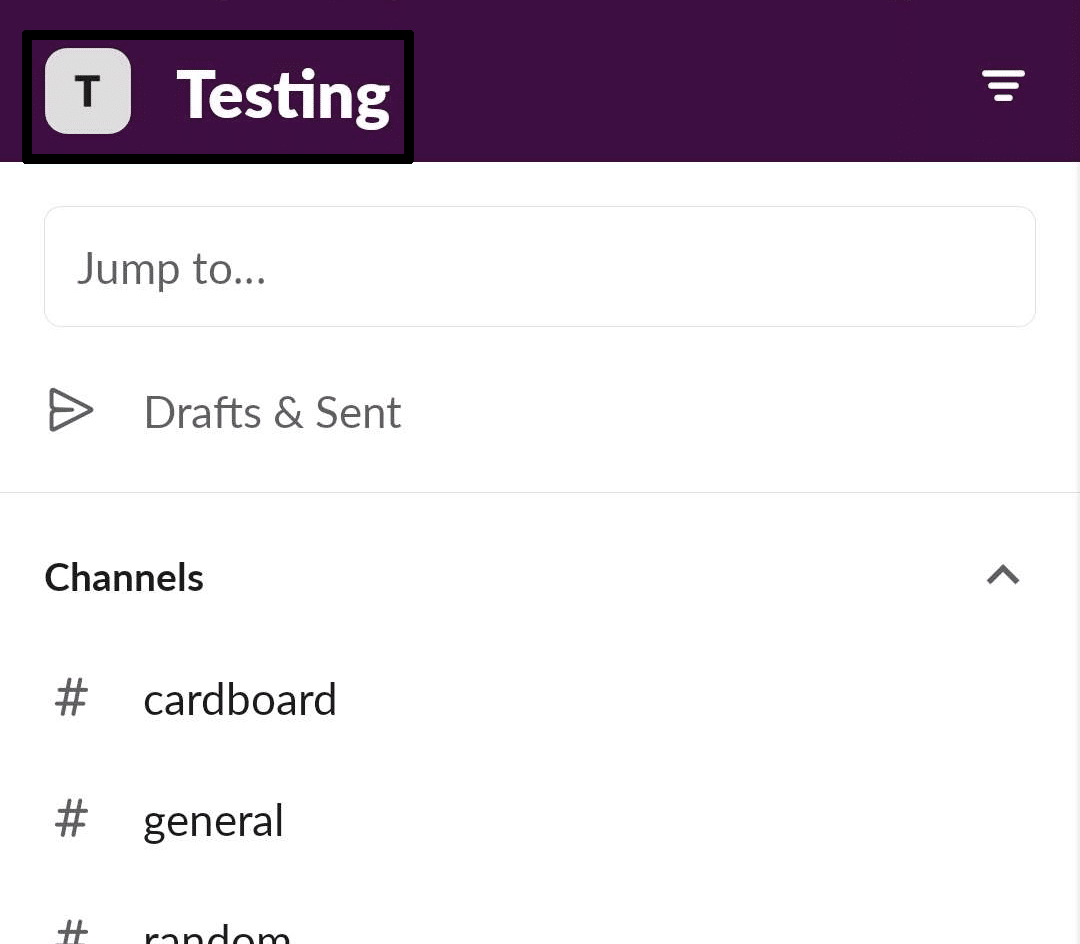
- After clicking on Home, tap on the upper-left portion of the app. This will usually be the name of the workspace you are currently in/logged into. Tapping this will open your Slack Workspace Menu.
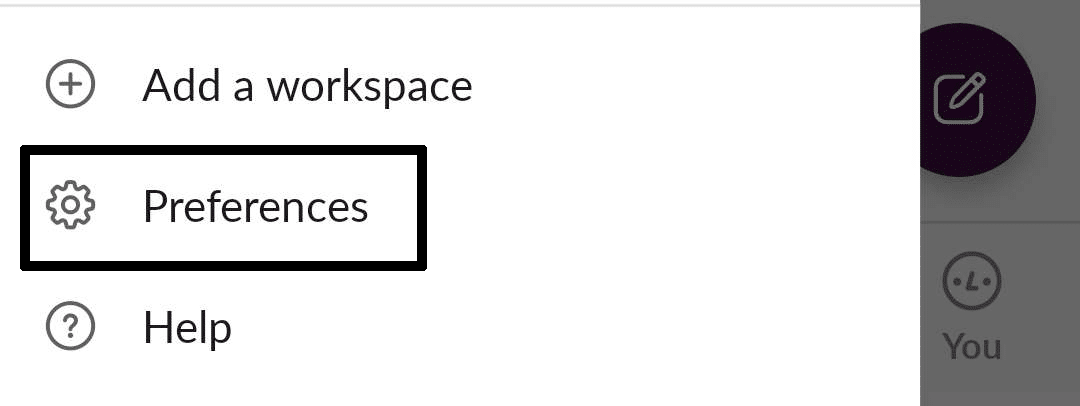
- After opening your Slack Workspace Menu, tap on “Preferences” ⚙️.
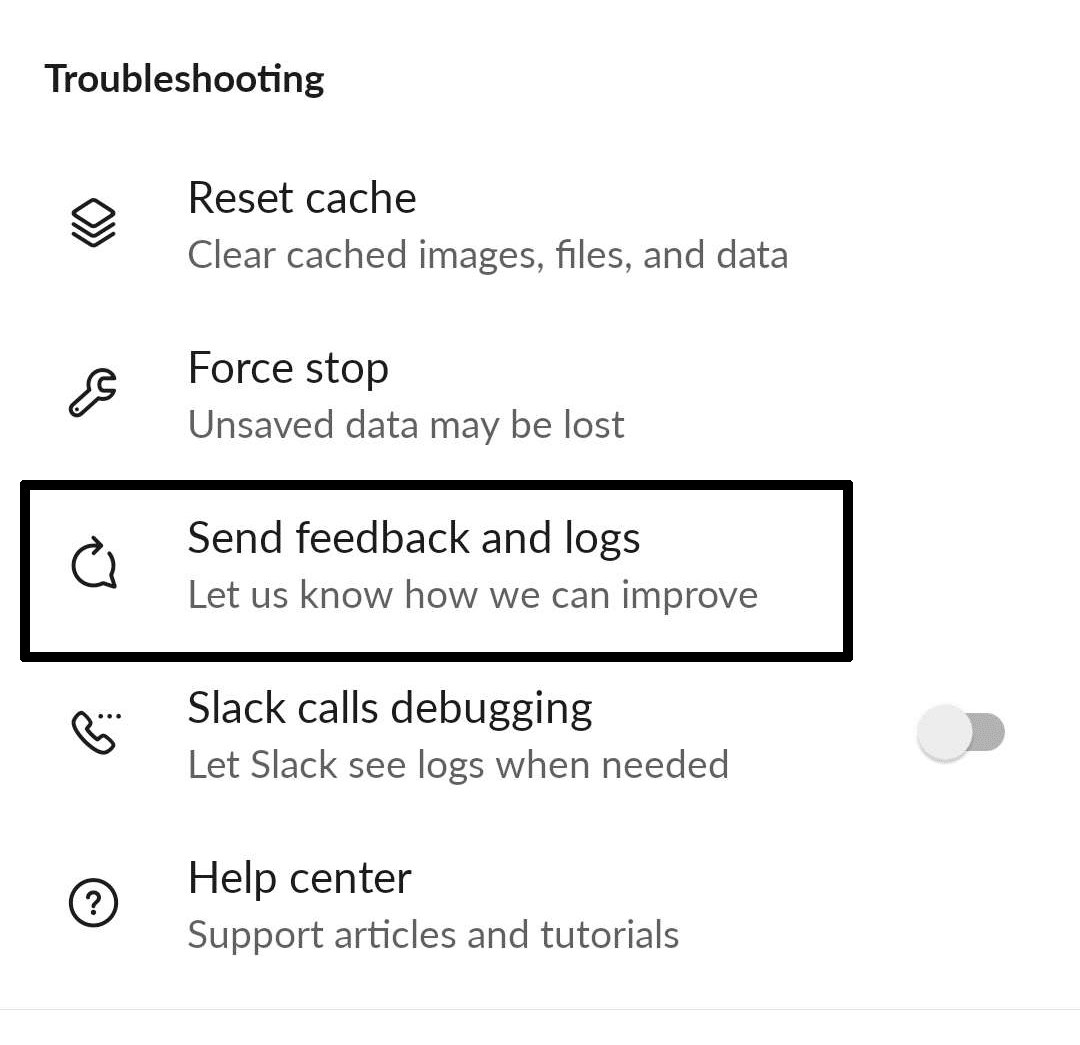
- In your Slack App Preferences, scroll down to the Troubleshooting category and tap on “Send Feedback and Logs”.
- In the popup menu, type in a brief explanation of your problem (such as “I have trouble logging in”) and then tap on “Send” to send the team a copy of your logs.
Following the steps will allow you to quickly send a report to the support team over at Slack as well as any corresponding data that is related to your problem. This will help speed up the problem getting solved at their end and allow you to quickly get back into your account as soon as it’s been resolved.
This feature is mainly available to the desktop app and mobile versions of Slack as it is entirely absent from the browser version of the platform with no ready alternatives.
7. Clear Your Slack Cache And Data
More often than not, one of the main reasons why you might have a problem with Slacks and other apps might have something to do with the internal files, like the data and cache getting corrupted.
Rather than going through the entire process of reinstalling a Slack app altogether, cleaning out your cache and data makes a great alternative to fix the problem.
Here’s how you can quickly clean out your Slack cache and data through these steps:
For Desktop (Windows & macOS)
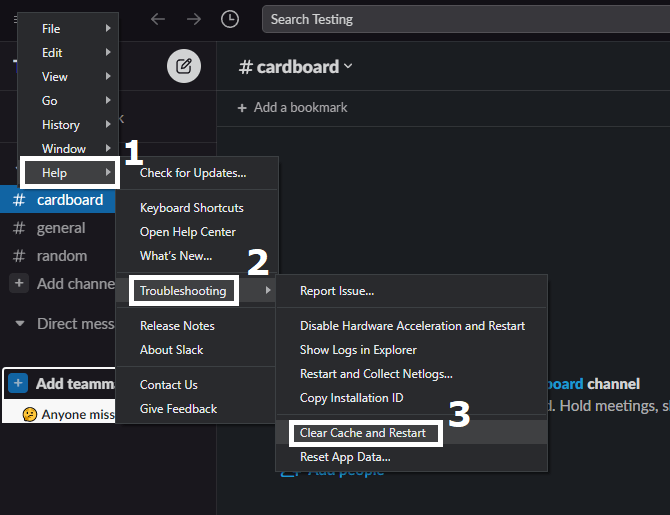
- In the Slack Desktop app, click on the three lines icon found at the upper-left portion of the app window.
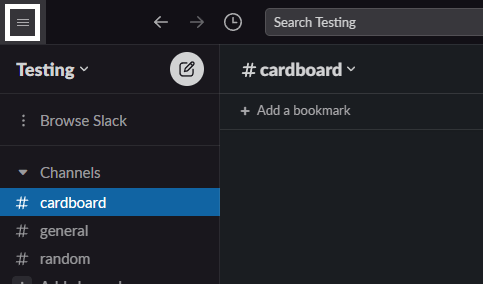
- After clicking on the three lines, click on the “Help” option, then click on “Troubleshoot”, and finally click on “Clear Cache and Restart”.
For Mobile (Android & iOS)
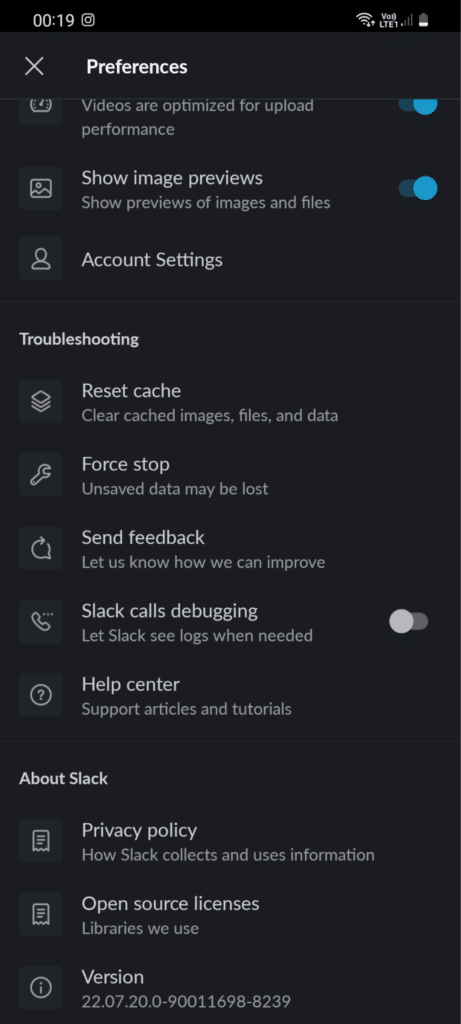
- First, open up the Slack app.
- Then, tap on the You tab in the bottom right-hand corner of your screen.
- After that, tap on the Preferences option.

- In the newly opened menu, select the Advanced option.
- Then, tap on the Reset Cache option.
- Finally, we would restart the app for good measure.
For Internet Browser
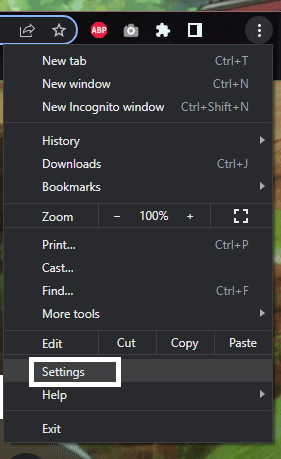
- Open your Browser’s settings ⚙️. This is usually down through a menu that can be accessed by clicking on it.
- Find the “Clear Browsing Data” option or something similar. You can search it out or find the “Privacy & Security” categories.
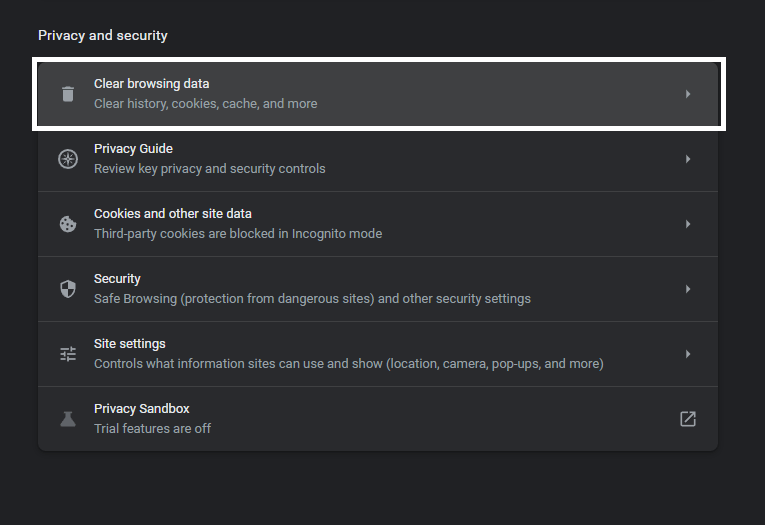
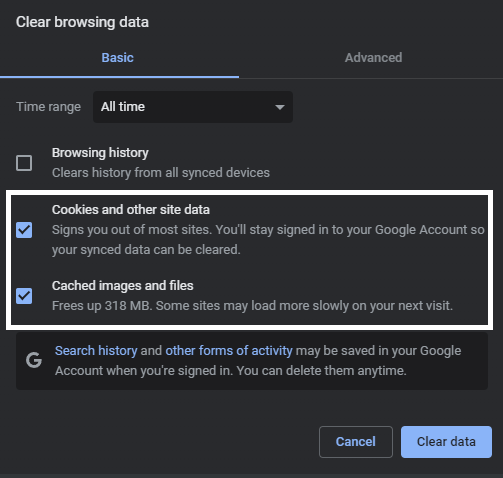
- If you are only looking to clean out your cache and data, select “Cached Images and Files” and “Cookies and other site data”. You can opt to clear your browser history as it doesn’t cause significant lag or performance drops.
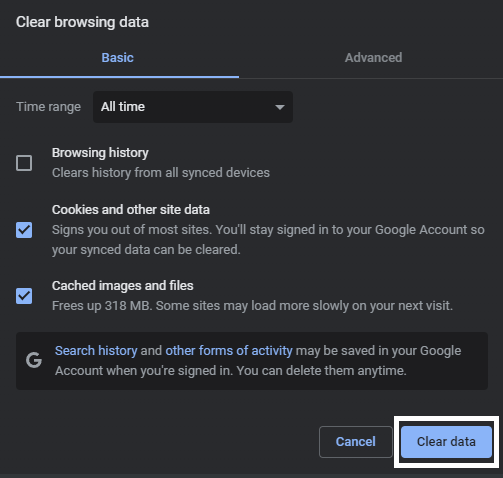
- Click on “Clear Data” once you have selected everything and wait for it to finish.
For Mobile
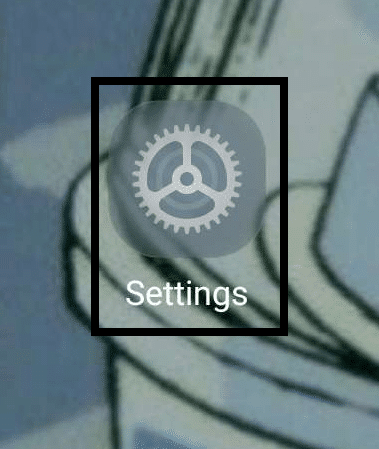
- Open your phone’s Settings⚙️ app.
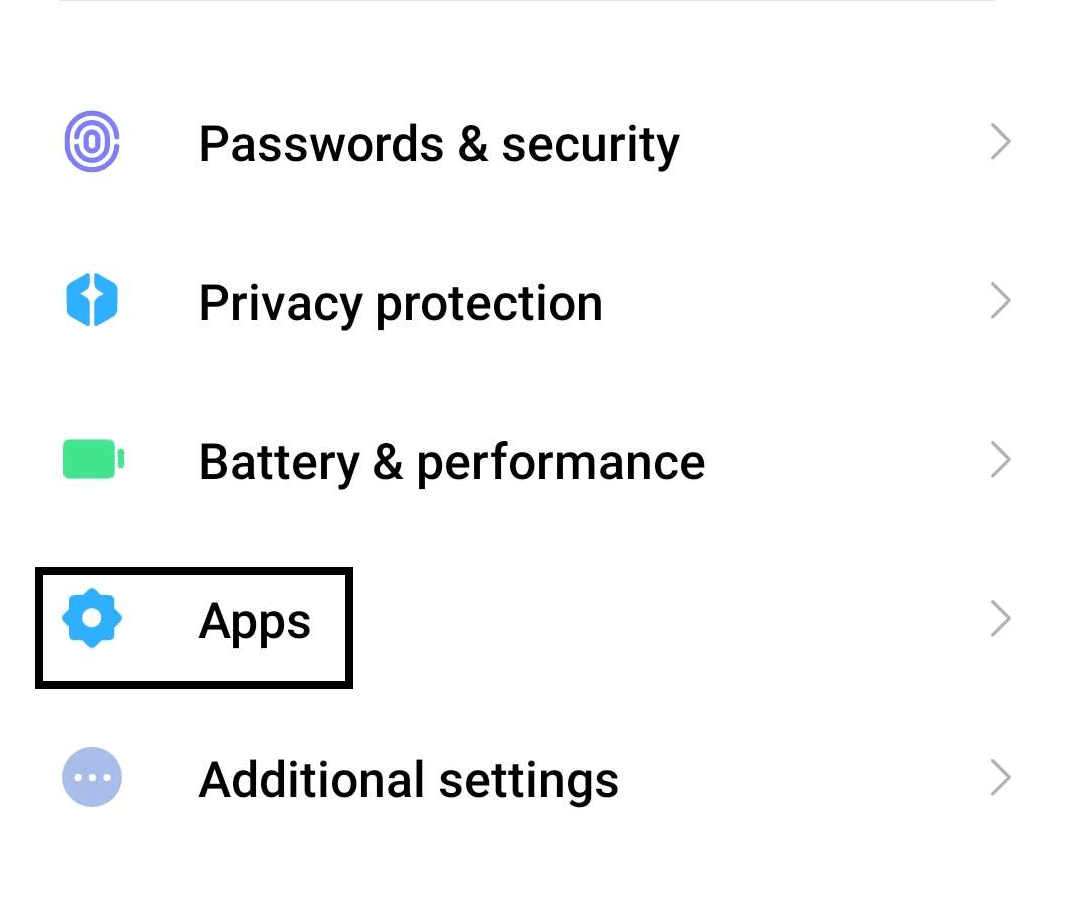
- Navigate to your phone’s Apps List by opening something similar to “Apps”.
- Find the Slack app from among all of your apps and open it.
- Tap on “Force Stop” on the LinkedIn app page before tapping on ”Clear Data”.

Going through the listed steps shown will allow you to quickly clean out any cache and data in your Slack app without causing any damage to the app itself. It is important to follow these steps properly so as to not have to go through reinstalling Slack and cause any bugs that might impede your experience within future sessions.
8. Reset Slack App Data
If cleaning out your cache and data for Slack doesn’t completely solve the issue, then resetting your Slack App is another way to clean out and fix any performance issues you have with Slack. The main disadvantage, however, of doing this is that you will be required to re-login to your Slack account as well as reconfigure your Slack account as a result of resetting it.
Here is how you can quickly do a reset for the Slack app for each platform:
For Desktop
- In the Slack Desktop app, click on the three lines icon found at the upper-left portion of the app window.
- After clicking on the three lines, click on the “Help” option, then click on “Troubleshoot”, and finally click on “Reset App Data”.
For Mobile (Android & iOS)
- In your Slack mobile app, tap on the “Home” portion of the app found in the bottom portion menu.
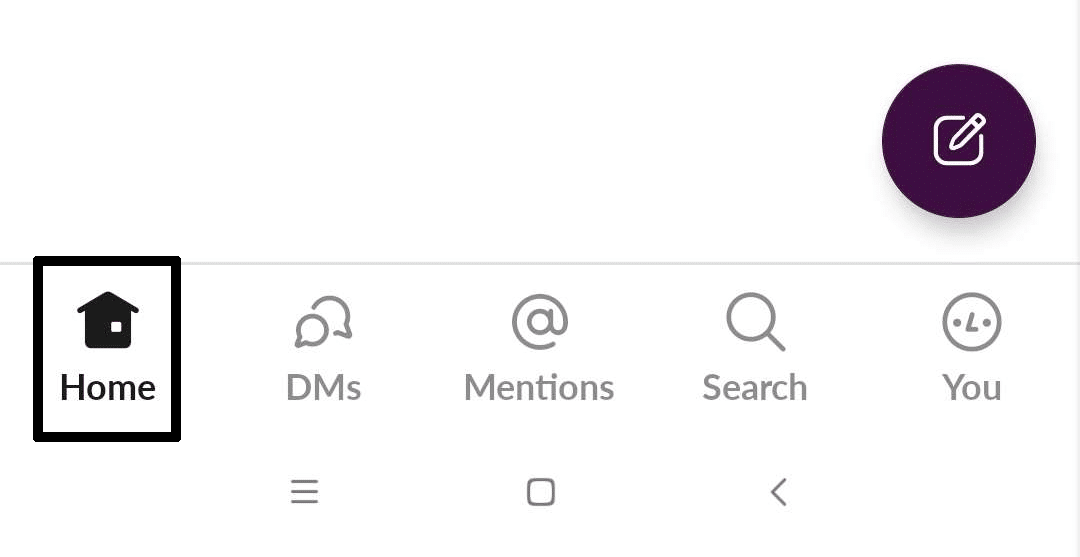
- After clicking on Home, tap on the upper-left portion of the app. This will usually be the name of the workspace you are currently in/logged into. Tapping this will open your Slack Workspace Menu.
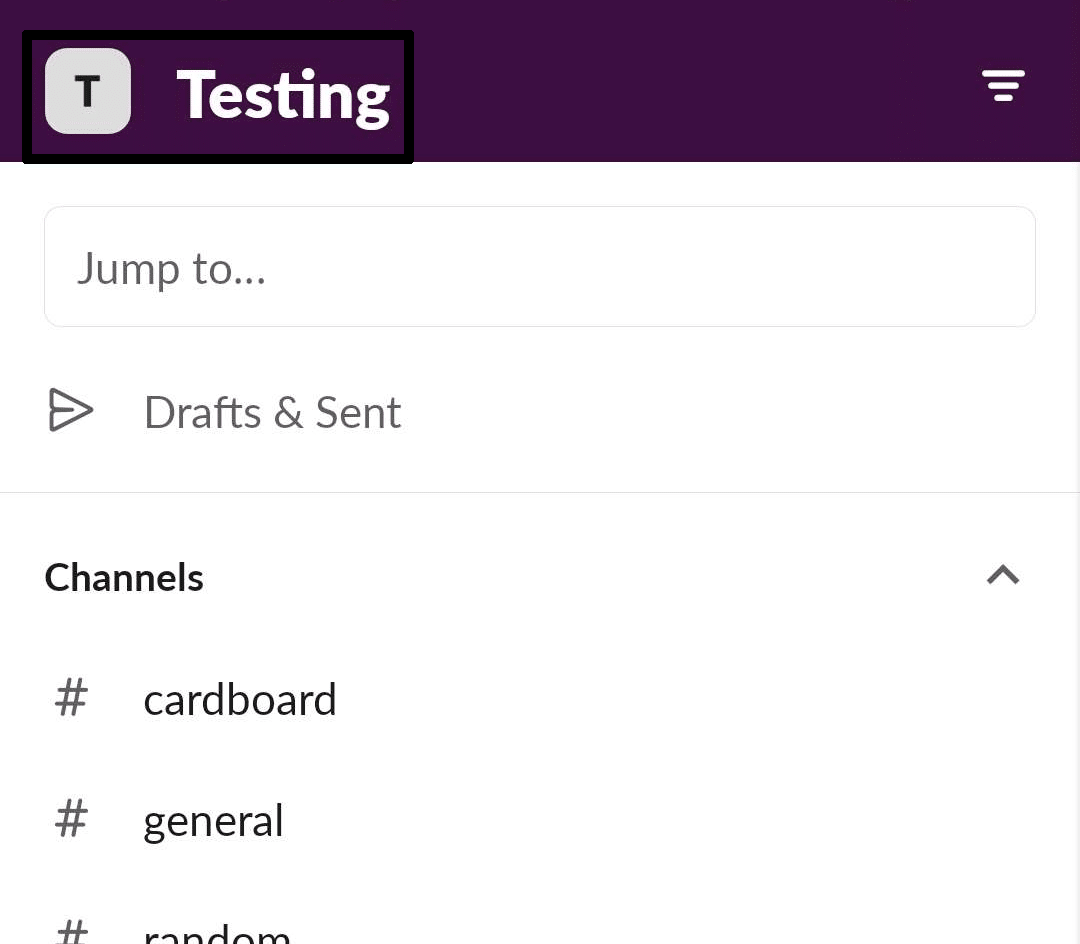
- After opening your Slack Workspace Menu, tap on “Preferences” ⚙️.
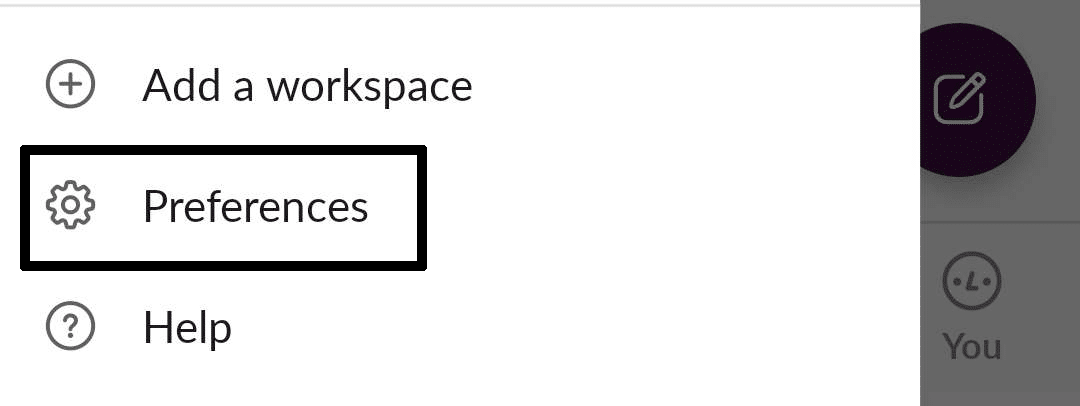
- In the Preferences of your Slack App, scroll down to the Troubleshooting category and tap on “Reset cache”.
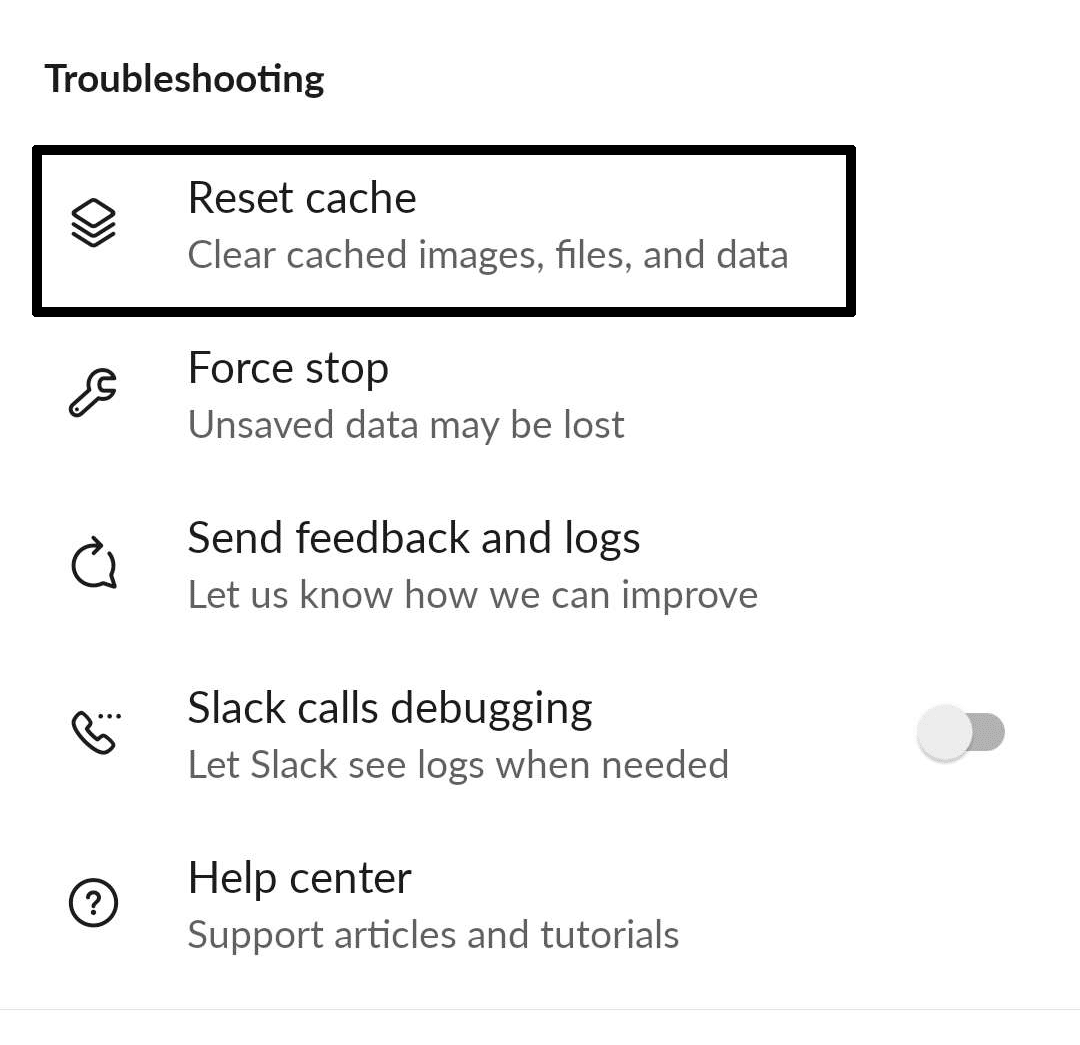
Following the steps above will allow you to quickly use Slack’s personal features to reset any data you had while using it prior quickly. Similarly to the previous steps, this feature is completely absent from the internet browser version of Slack and is only present with the desktop app and mobile versions.
9. Report the Error to Slack
Reporting the problem to Slack is an effective solution for users who are still facing the “Can’t Log In”, “Slack Cannot Connect” or “Server Error” issue even after trying other fixes. By reporting the problem, users can directly inform Slack’s support team about the issue they are experiencing, allowing them to investigate and resolve the issue.
Reporting the problem to Slack is effective because it enables users to receive personalized support from the platform’s support team. Slack’s support team can offer specific solutions based on the user’s issue and device configuration. They can also identify any potential server-side issues or conflicts that may be causing the problem and work to resolve them promptly.
Additionally, reporting the problem to Slack can help the platform improve its services and fix any underlying issues that may be causing login problems for users. By reporting the problem, users can contribute to making the platform more reliable and effective, ensuring a better experience for all users.
Here’s how to report an issue through the Slack app:
- Start by opening up the Slack app.
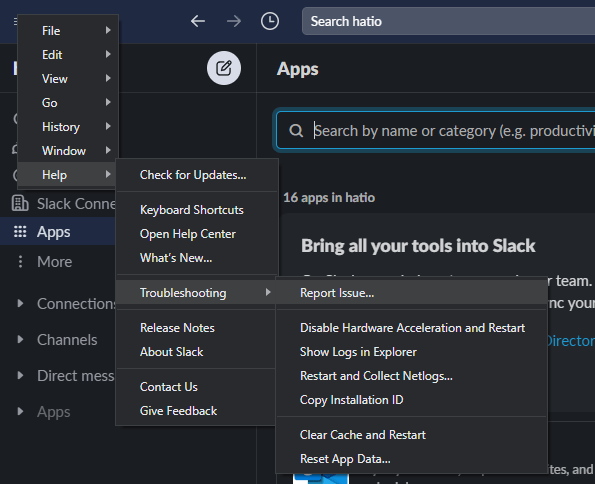
- Then, for Windows, click on the hamburger icon on the top-left-hand corner of the app. macOS users can skip to the next step.
- In the drop-down menu, hover your cursor over the Help section. This should be in the top bar for macOS.
- In the extended drop-down menu, hover over Troubleshooting and then finally click on Report.
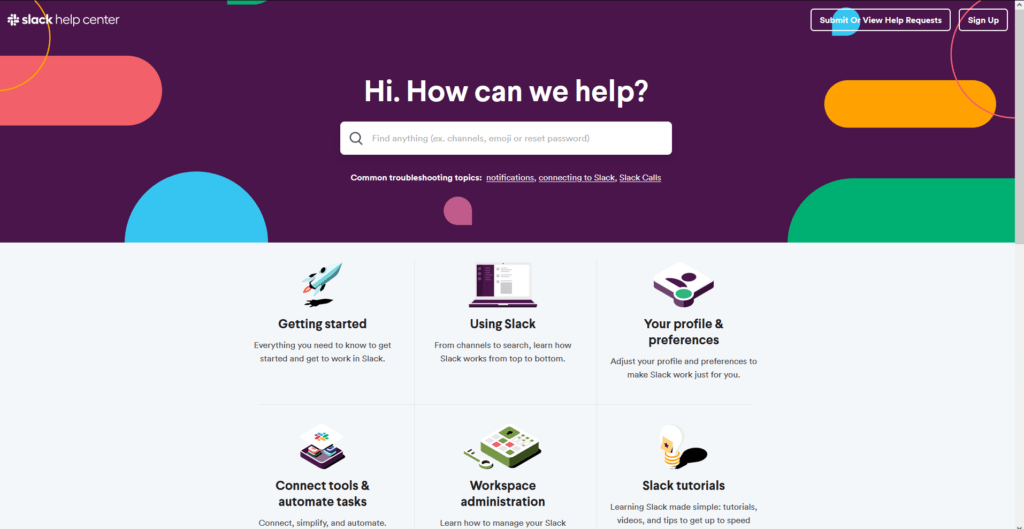
- A new window should pop up displaying Slack’s Help Center.
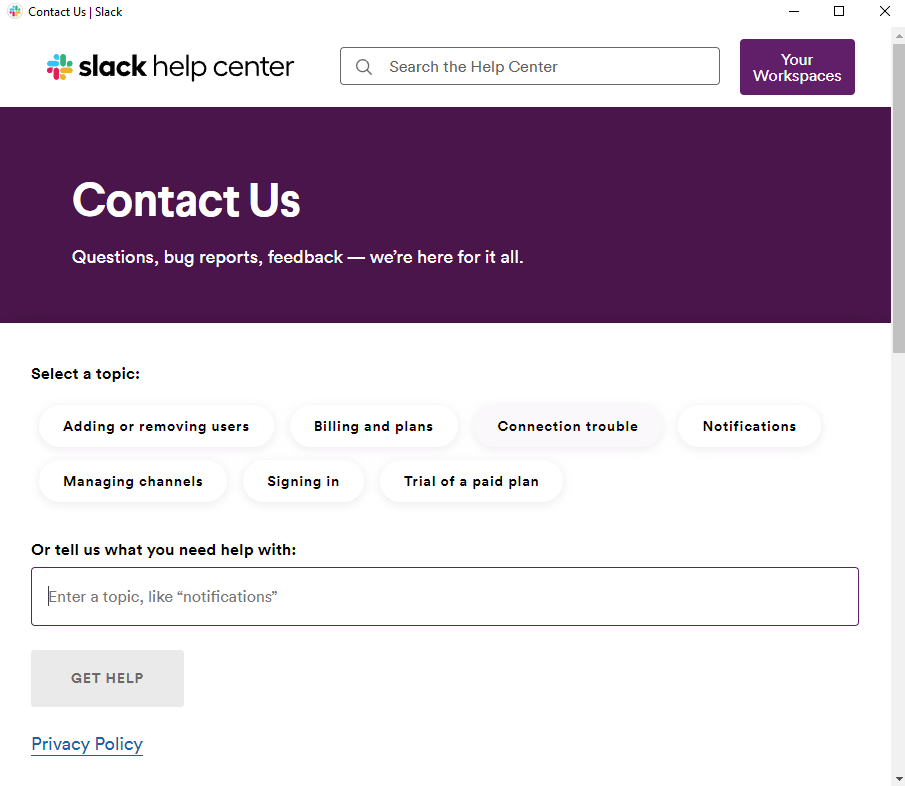
- Additionally, we recommend using the Show Logs in Explorer option so that you can send them the logs for even more detail on what went wrong.
Otherwise, we suggest reporting the issue to them through any of their official outlets, which we’ve listed below:
Conclusion
Slack makes for an extremely convenient platform for project management and communicating with members of the same team. It is very similar to Discord with some of its functionalities and features but offers a more structured and organized setting which is ideal for bigger companies in a working environment.
Not being able to readily access your Slack accounts and workspace can be an understandably frustrating scenario to be in, as you can miss out on important announcements or even meetings that are related to your project. The guide we have prepared that covers 3 reasons and 9 fixes for this issue is sure to help you quickly log back into Slack.
All in all, let us know down below 👇in the comments
- If you found this guide helpful in any way and which of the fixes we listed helped you out the most?
- Any additional fixes that we should consider adding that we missed?
- What do you think makes Slack a better platform compared to others in the same line?
- What are your personal favourite features or things you love about Slack in Project Management and communicating?
If you’ve found this article helpful, don’t forget to share.